Remote Pair Programming Accessibility Playbook for Keyboard-First Teams
A practical playbook for accessible remote pairing: keyboard-first habits, clean shortcuts, and calm role swaps for mixed teams.
By Casey
Designing remote pairing that works for mixed-ability teams
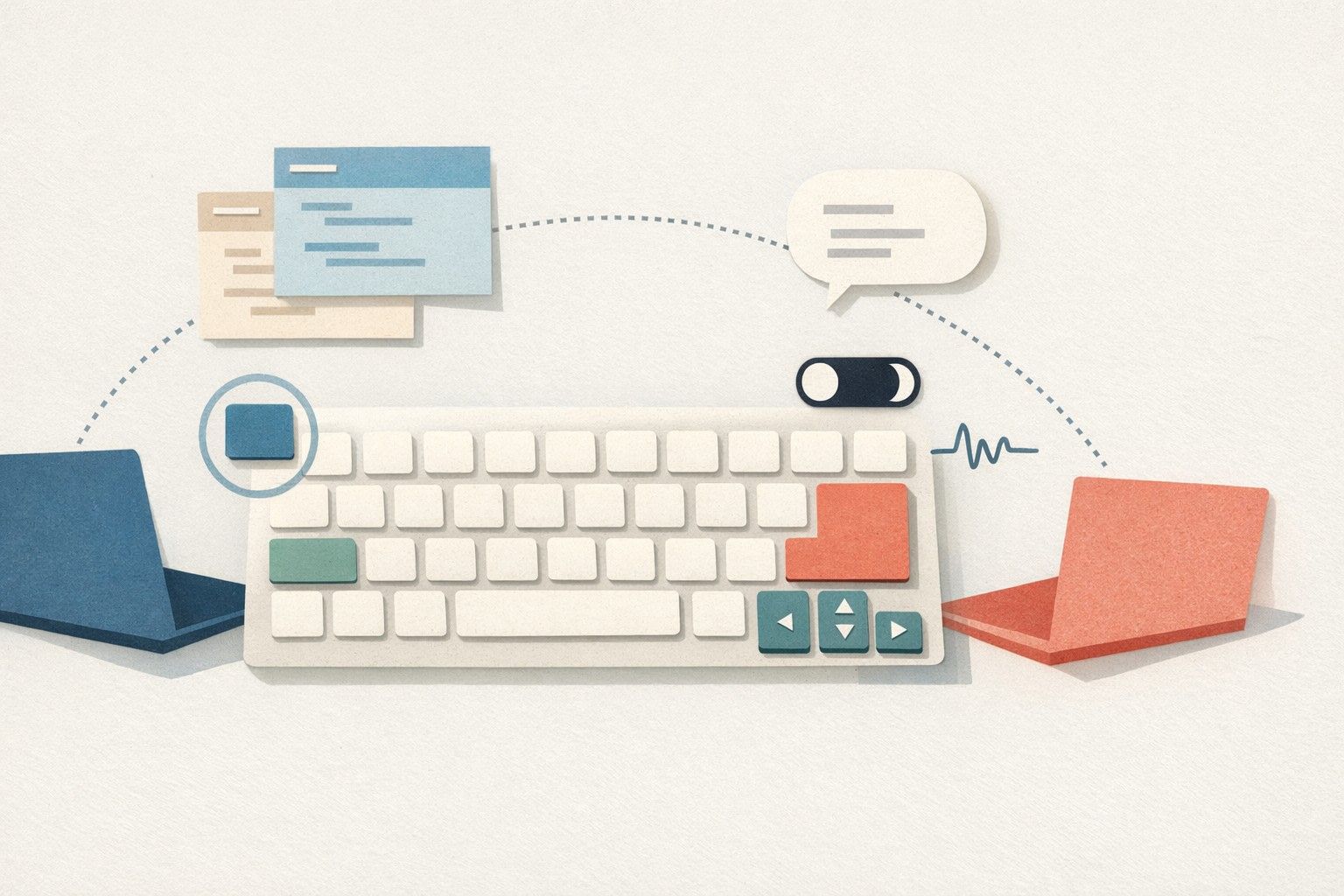
Remote pair programming is easiest when both people can fluidly trade control, narrate intent, and recover quickly from small mistakes. It gets harder when the pair has mixed abilities: one developer may be fully keyboard-driven, another may rely on trackpad, assistive tech, or simply needs more time to context-switch. Accessibility here isn’t a policy statement—it’s the operational detail of how you share input, how you speak, and how you swap roles without frustration.
This playbook focuses on three practical pillars: keyboard-first workflows, shortcut hygiene, and low-friction role swapping. The goal is to make pairing predictable, respectful, and fast—even when the team’s inputs, speed, or preferences differ.
Keyboard-first workflows without excluding anyone
Agree on the “keyboard contract” for each session
Keyboard-first pairing doesn’t mean “no mouse.” It means you default to repeatable, discoverable actions that don’t depend on tiny targets, high precision, or remembering where a menu lives. Start each session with a quick contract:
- Driver rules: driver narrates every significant action (“I’m going to search for the handler, then open tests”).
- Navigator rules: navigator asks for intent before taking control (“Want me to refactor this block?”).
- Fallbacks: if a shortcut fails or differs between machines, fall back to command palette/search.
This tiny alignment reduces cognitive load for anyone using alternative input devices because the flow becomes verbal and predictable rather than gesture-based.
Standardize on search-driven navigation
The most accessible “keyboard-first” move is to rely less on remembering and more on searching. In practice:
- Prefer editor command palettes to buried UI paths.
- Use “Go to file/symbol” routinely, not only when lost.
- Keep terminals navigable with history search and named scripts.
Mixed-ability teams benefit because the same action sequence works whether someone is on a compact keyboard, using voice dictation, or working more slowly. It also keeps the navigator engaged: search queries become a shared artifact (“Search for ‘BillingWebhook’ and jump to the receiver”).
Make remote control feel local (or don’t use it)
Remote control is powerful, but it can also be disorienting if it’s laggy or if both people accidentally “fight” over input. A purpose-built pairing tool matters here because the interaction model should support quick, intentional handoffs and reliable responsiveness. Tools like tuple.app are designed around low-latency screen sharing and snappy remote control so a keyboard-first workflow doesn’t degrade into “can you click that for me?” micro-friction.
Operationally, decide per session:
- Single-controller mode: only the driver controls input; navigator stays verbal.
- Split mode: navigator requests control for discrete tasks (e.g., “Let me write the test”).
- No-remote-control mode: if control introduces stress, keep to verbal navigation and pasted snippets.
Shortcut hygiene that prevents collisions and confusion
Define “team-level” shortcuts and leave the rest personal
The fastest teams often have heavily customized keymaps—until pairing starts. Shortcut hygiene is about separating what must be shared from what can remain personal:
- Team-level agreements: a small set of shortcuts everyone can rely on (format, rename symbol, run tests, search).
- Personal optimization: individuals can keep their own editor bindings beyond that shared core.
In mixed-ability contexts, a shared core prevents the worst experience: the navigator suggests an action that the driver can’t execute because the mapping is different or physically difficult to perform.
Prefer chord-light, reachable bindings
Accessibility-friendly shortcuts tend to have three properties: they’re easy to reach, they’re consistent across OSes, and they avoid complex chords. When you define your shared core:
- Minimize four-key chords and pinky-heavy combinations.
- Reserve “hard” chords for rare actions.
- Consider alternate bindings for the same action (e.g., a command palette alias).
If your team pairs across macOS and Windows, document the equivalent keys. Even better, keep a short “pairing keymap” note and revisit it quarterly.
Maintain a visible, session-ready cheat sheet
Shortcut hygiene isn’t only about the bindings—it’s about discoverability. Keep a compact cheat sheet that covers:
- Core editor actions (search, symbol navigation, refactor, format)
- Test workflows (run current file, run last, rerun failures)
- Git basics used while pairing (stage, commit message conventions, amend)
This reduces the social cost of asking “what’s the shortcut?” and avoids the silent frustration that can arise when one person feels behind.
Low-frustration role swapping and control handoffs
Swap roles by intent, not by time
A common anti-pattern is swapping every N minutes. Mixed-ability teams do better with intent-based swaps: switch roles when the work changes shape. Examples:
- After agreeing on an approach, swap to let the other person implement.
- Swap when moving from exploration to editing (or editing to debugging).
- Swap when the current driver is stuck in a narrow loop.
This keeps swaps meaningful and reduces the “now I must perform” pressure that rigid timers can create.
Use explicit handoff phrases and a three-step swap
To avoid confusion, adopt a tiny ritual:
- Announce: “I’m going to hand you control to write the test.”
- Confirm: “Ready?” / “Yes.”
- Verify: new driver states the next action (“Running unit tests now”).
This is particularly helpful when one participant uses assistive technology or needs a moment to orient to focus, cursor location, and window state.
Make “where are we?” cheap with lightweight trace markers
Swapping is smoother when context is externalized. During pairing, leave breadcrumbs:
- Small TODO comments that will be removed before merge.
- Named terminal tabs or scripts for repeatable commands.
- Short commit checkpoints, even if you later squash.
If you want to take this further, treat pairing sessions as part of an observable workflow: the more reliable your automated runs and traces, the less you rely on one person remembering what changed. Teams already investing in traceability for scheduled work may recognize the same principle described in Migrating Cron Sprawl to Code-Defined DAGs With OpenTelemetry Traceability: make execution paths legible so humans don’t have to reconstruct them under pressure.
Session etiquette that supports accessibility
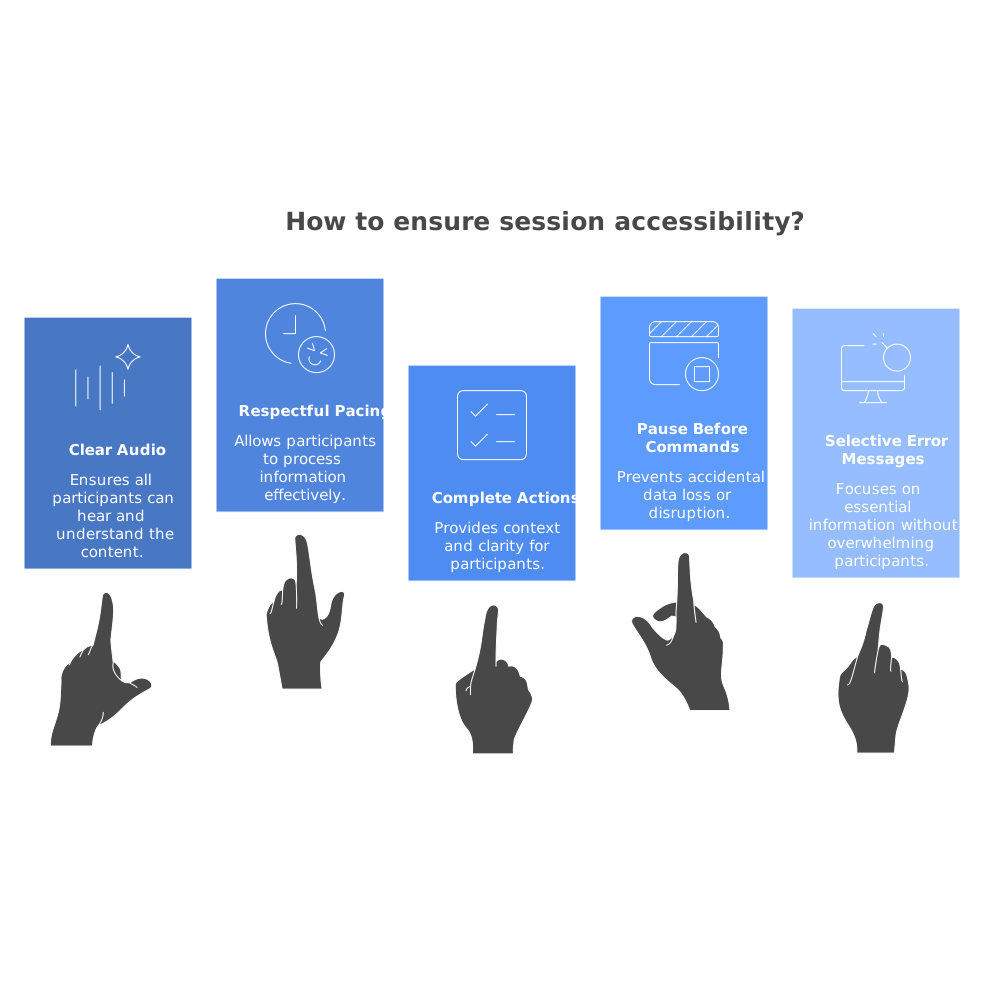
Audio clarity and pacing are accessibility features
Clear audio and respectful pacing are not “soft” concerns—they directly impact comprehension. Agree to:
- Speak in complete actions (“I’m renaming this function to match the interface”).
- Pause before running destructive commands.
- Read out error messages selectively (headline + key line), then share the screen focus.
High-quality audio and stable screen sharing reduce the need for repetition and lower fatigue. This is also where pairing tools optimized for crisp audio and high-resolution sharing can meaningfully change the experience for mixed-ability pairs.
Build a “reset protocol” for when things go sideways
Every team needs a low-ego reset. Define a simple protocol:
- Stop typing.
- State the goal in one sentence.
- State what you believe is true (assumptions).
- Choose the next smallest testable step.
This reduces frustration and prevents the faster typist from steamrolling the slower thinker. It also makes the session inclusive for developers who process information differently.
Putting it into practice with a lightweight team checklist
- Keep a shared “pairing keymap core” and update it intentionally.
- Default to search-driven navigation and command palettes.
- Use intent-based role swaps with explicit handoff phrases.
- Externalize context with small, removable markers.
- Treat audio, resolution, and input latency as first-class requirements.