Avoiding the Shared Terminal Trap in Remote Pair Programming
Prevent secret leaks in remote pairing by hardening terminals, history, clipboard, and password manager workflows.
By Casey
Why shared terminals leak secrets faster than shared code
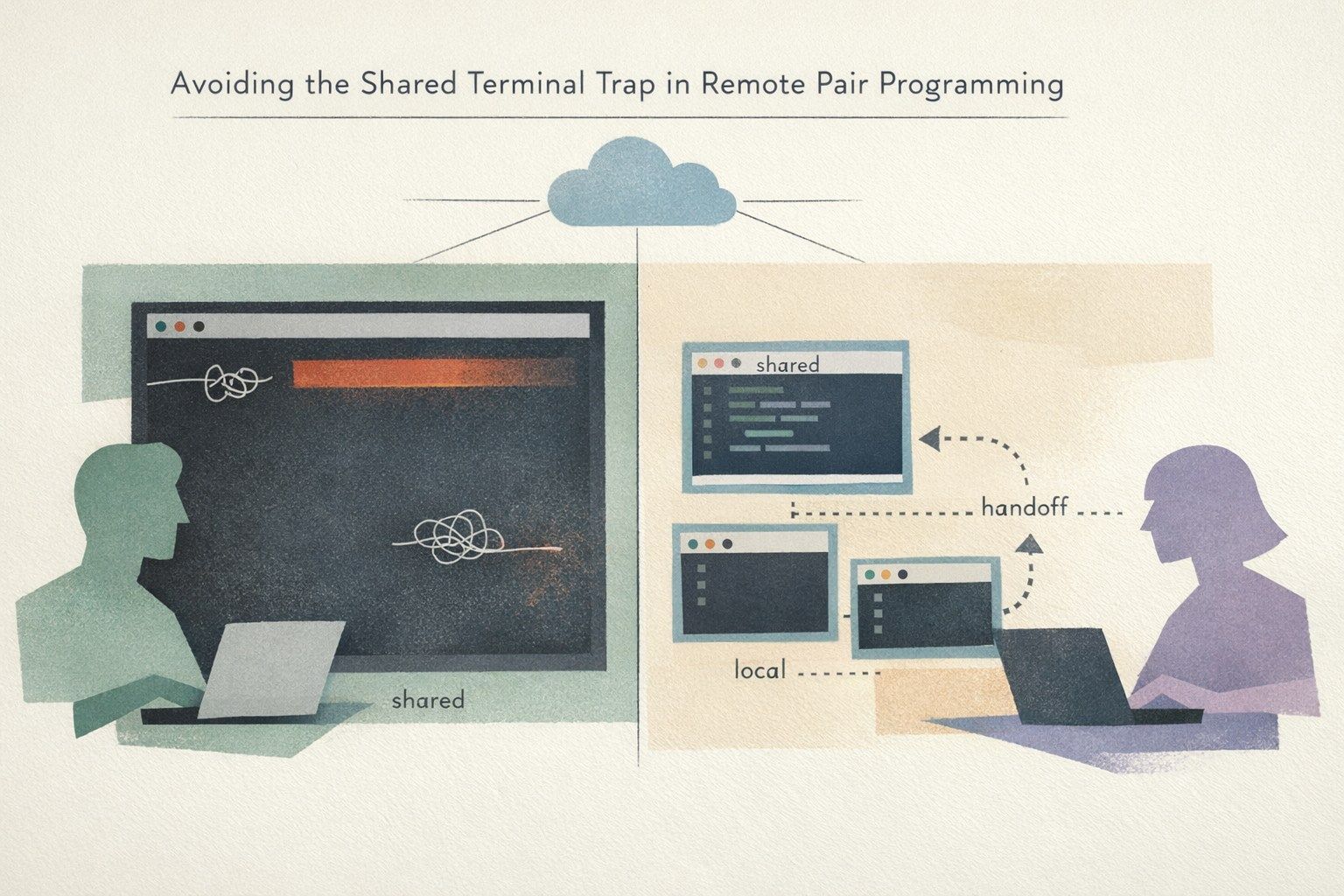
Remote pairing is supposed to reduce friction: one person drives, the other navigates, and progress stays visible. The “shared terminal” trap is what happens when that visibility extends to things that were never meant to be collaborative—API keys, database passwords, private repository URLs, internal hostnames, and even personal credentials living in shell history.
The risk is rarely malicious. It’s accidental: a paste that includes a token, an auto-complete that reveals a path, a password manager pop-up that steals focus, or a command that lands in history and gets re-run later. If you pair often—especially with remote control enabled—this becomes a repeating exposure pattern rather than a one-off mistake.
How leaks happen during pairing
Remote control changes the threat model
Screen sharing alone is “read-only” exposure. Remote control adds a new class of risks: the guest can trigger UI elements, open menus, or focus a hidden window unintentionally. Even well-intentioned collaborators can cause a credential prompt to appear or a sensitive app to take foreground.
Tools that are purpose-built for pairing help because they’re optimized for rapid role swapping and reliable control while keeping the security posture clear. For example, Tuple’s design emphasizes end-to-end encrypted sessions and privacy controls such as App Veil, which lets hosts hide sensitive apps and notifications before sharing—useful for preventing the accidental “password manager on screen” moment. You can learn more at tuple.app.
Shell history is a quiet, durable leak
Even if a secret only flashes on screen briefly, it can persist in:
- Shell history files (e.g.,
~/.zsh_history,~/.bash_history) - Terminal scrollback that gets searched or copied later
- Clipboard managers that retain pasted content
- Command-line tools that log requests, headers, or environment dumps
The most common “I didn’t realize” scenario is pasting a token into a command (like a curl header), then later searching history for the command pattern—bringing the secret back into view.
Password managers and autofill are optimized for single-player mode
Password managers behave correctly for an individual but can betray you during pairing. Typical problems include:
- Autofill overlays appearing on top of the browser or terminal
- Quick unlock prompts that expose which vault/item you’re accessing
- Clipboard-based paste that remains available for a long time
Even without showing the password itself, metadata like service names, environment labels (prod/staging), or internal URLs can be sensitive.
A practical prevention checklist before you start pairing
1) Decide what is safe to share in the session
Pairing works best when both people know the boundaries. Make a quick call at the start:
- Will you be touching production systems?
- Will you need to authenticate to third-party services?
- Are you going to run commands that print environment variables or configs?
If the answer is “yes” to any of these, treat the terminal as a high-risk surface and apply the controls below.
2) Use a dedicated “pairing shell” with reduced persistence
Instead of pairing in your everyday shell session, open a clean shell intended for collaboration. The goal is to reduce saved artifacts.
- Disable history for the session (shell-specific) when you know secrets may appear.
- Use a separate history file for pairing so it can be reviewed or deleted afterward.
- Reduce scrollback so secrets don’t remain searchable in the terminal buffer.
This isn’t about perfection; it’s about making the “oops” moments less durable.
3) Prefer environment-based auth over inline secrets
Inline secrets are convenient and dangerous because they end up in history and screen recordings. Better patterns include:
- Short-lived session tokens stored in environment variables set out of view
- Credential helpers (cloud CLIs, git credential managers) that avoid printing secrets
- Config files with correct permissions rather than command-line flags
When you do need to set an environment variable, do it in a way that avoids echoing values to the terminal and avoids later “dump everything” commands during the session.
4) Be intentional with remote control and role switching
Remote control is valuable, but you can narrow exposure by using it deliberately:
- Disable control temporarily during authentication steps.
- Swap roles so the person who needs the secret performs that step locally and quickly.
- Keep sensitive apps off the shared desktop and use privacy features to hide them.
Tuple’s quick role swapping and privacy-oriented design make this style of collaboration feel natural rather than cumbersome, which matters because teams only follow safeguards that don’t slow them down.
5) Treat clipboard and paste as production-grade surfaces
The clipboard is one of the easiest places to leak secrets during pairing. A few disciplined habits help:
- Turn off or tighten clipboard managers during pairing sessions.
- Avoid copying secrets that you might paste into chat by mistake.
- Use “paste without formatting” or terminal bracketed paste features where available to reduce accidental execution.
If you must paste a secret, plan a quick “sanitize” step right afterward: clear clipboard, close prompts, and ensure nothing remains visible in scrollback.
Session hygiene after the pairing call
Audit what your tools kept
After a session that touched credentials, do a quick review:
- Search your shell history for obvious patterns (tokens, “Authorization: Bearer”, “password=”).
- Check terminal scrollback if you routinely copy from it later.
- Review any generated files (dotenvs, debug logs) and confirm permissions.
This doesn’t need to become a ritual every time—reserve it for sessions that handled secrets, production access, or debugging output.
Rotate what you suspect may have been exposed
If a real secret was shown on screen, assume it’s compromised and rotate it. The cost of rotation is usually far lower than the cost of incident response. Teams that already maintain good operational traceability for scheduled tasks and automation often find it easier to spot where a leaked credential is used; practices like code-defined workflows and traceability can reduce the blast radius when something goes wrong. (If you’re consolidating operational sprawl, see migrating cron sprawl to code-defined DAGs with OpenTelemetry traceability.)
Team policies that prevent repeat incidents
Standardize a “pairing mode” baseline
Most leaks happen because everyone improvises. A lightweight standard helps:
- A dedicated pairing shell profile
- Clear rules for when to disable remote control
- A shared checklist for production debugging sessions
Over time, this becomes part of onboarding—especially for teams that pair frequently across time zones and devices.
Separate collaboration identity from production identity
When possible, avoid using personal long-lived credentials in pairing sessions. Use role-based access, temporary credentials, and service accounts with minimal permissions. This reduces both the likelihood and the impact of accidental exposure. If your product organization already tracks feedback and customer context carefully, the same “identity discipline” mindset can be applied to access control: clear ownership, explicit scopes, and minimal ambiguity. (Related: building a feedback identity graph to merge feature requests without losing revenue context.)
What “good” looks like in day-to-day pairing
The goal is not to make remote pairing paranoid—it’s to keep it fast while removing the easiest ways secrets escape:
- Secrets rarely appear inline in commands.
- Pairing sessions use shells that don’t preserve sensitive history by default.
- Remote control is used intentionally, with quick role swaps for sensitive steps.
- Privacy features hide the apps most likely to betray you.
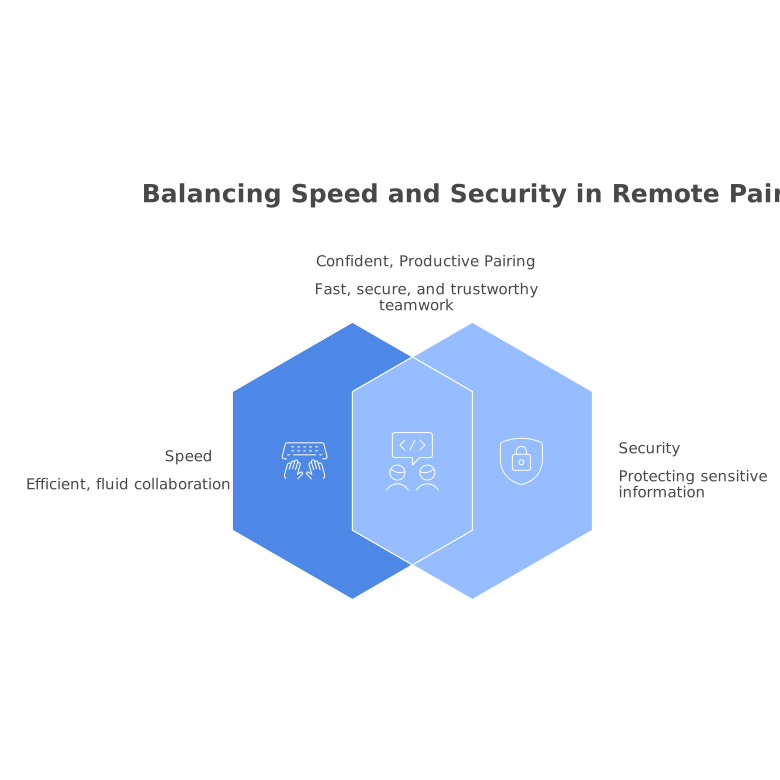
When the collaboration tooling is built for pairing—not generic screen sharing—you’re more likely to adopt these habits because the workflow stays fluid. That’s the real prevention: safeguards that fit the way engineers actually work.